Showing posts with label Tutorial. Show all posts

Saturday, November 24, 2012

Maps

Maps

Maps has changed with the iOS6 update. Please keep in mind that Maps is no longer Google Maps it is Apple Maps. You can still do the SAME features and now you have turn by turn voice directions with SIRI.

There are options to download Google Maps and Google is presently working on getting an APP approved by Apple to get back on the iPhone. Search Google Maps in the store or check out this site: http://www.tuaw.com/2012/10/19/put-google-maps-back-on-your-iphone-with-maps/

Access Maps:

There are two ways to access maps:

  • Press and hold the home button till you get this screen:
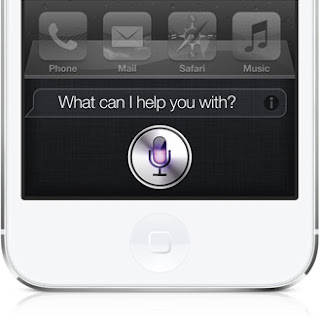
  • Say Directions to (enter your location)
  • Siri will then open Maps
                                                   
  • The second way is to go to the home screen and select Maps

  • In the bar at the top enter in your address or select a contact

  • When location loads select the blue circle with a tip of an arrow

  • Select Directions to or Directions from here depending on which option you are using.

  • Select route type (Car, walking or transit) then select route

  • Then select Start after you have selected which route.

  • Siri will start giving  you directions and as you move she will continue to tell you how to go.
Some tips and Tricks regarding maps:
  • The Book in the top right hand corner will allow you to pull up addresses
  • The arrow in the bottom left hand corner will allow you to see where you presently are.
  • 3D will give you a 3d view.
  • If you tap the upturned corner in the bottom right hand corner you will get some additional options:
    • Drop Pin allows you to drop a pin at the location you entered
    • Print allows you to Air Print
    • Hide Traffic/Show Traffic allows you to see the traffic options
    • Standard gives you the basic map option
    • Hybrid
    • Satelite gives you a birds eye view of the area.


Maps Settings:

To access the settings you go to:

  • Go to Settings

  • Go to Maps

  • This is what you will see.


iCloud Control Panel

iCloud Control Panel

iCloud Control panel is a great tool for Windows Users. It allows you to sync your photostream straight to a folder!

  • Download the iCloud Control Panel through the iTunes website (it should install when you update your iTunes) http://itunes.com
  • Follow the Setup Prompts
Once iCloud control panel is installed open it up

  • Sign in:


  • Once you are logged in you will see this screen:


    • In this screen you can sync your bookmarks and select what folder you want your Photo Stream to download to. It also shows you your iCloud storage and where your contacts, calendars and reminders are stored. If you do not have iCloud turned on for contacts, calendars and reminders you will see a sync option.
  • Select Account Options to see your apple id and to edit it. You can also send diagnostics (recommended)


  • Select Manage to Manage your icloud storage plan and sign up for more or less (5GB is the least amount you can have) along with see how much or how many backups you have.


  • Select Options to see where Photo Stream is downloading photos:


Wednesday, November 21, 2012

iMessage

iMessage

iMessage is the method of sending messages to any iOS Device (iPod Touch, iPhone, iPad) and even Mac computers. Be advised that any device that is signed in under the same AppleID can and does receive any iMessage that is sent.

Confirm that iMessage is turned on:

  • Go to Settings


  • Go to Messages


  • Select On next to iMessage


Determining an iMessage vs Text message

Any messages that are green are regular text messages. Any Message that is blue is a iMessage.


Settings for iMessage:
  • Go to Settings

  • Go to Messages


  • Scroll down to Send & Receive (tap send & receive)

  • This will show you all the ways people can iMessage you.

Tuesday, November 20, 2012

AirPrint and iPhone

AirPrint


Here is a good step by step to setting up AirPrint on an iPhone: http://www.apple.com/support/iphone/assistant/airprint/#section_1

Here is a list of AirPrint printers:  http://support.apple.com/kb/HT4356

If the printer is not in the list above they will have to download the app associated with their printer, here are some of the main manufactures and their airprint sites:
Epson-http://www.epson.com/cgi-bin/Store/support/supDetail.jsp?oid=192091&infoType=FAQs
Brother- http://welcome.solutions.brother.com/BSC/public/us/us/en/faq/faq/000000/002800/000064/faq002864_000.html?reg=us&c=us&lang=en&prod=mfcj825dw_all
Cannon-http://www.epson.com/cgi-bin/Store/support/supDetail.jsp?oid=192091&infoType=FAQs