Here are some screenshots of the Craigslist App:
iPhone Tutorial mixed with Words of Wisdom and occasionally other device tutorials
Wednesday, April 24, 2013
Tuesday, April 23, 2013
Reset Network Settings
Resting Network Settings on an iPhone is a good way to disconnect from the networks. It is also a good first step in troubleshooting network or connection issues on the iPhone. Recommendation: Reset network settings at least once a week to ensure that you are getting updated information from the network.
Warning: You will need to re-enter any and all WIFI passwords when you do this.
To Reset Network Settings:
Phone will turn off and turn back on.
Warning: You will need to re-enter any and all WIFI passwords when you do this.
To Reset Network Settings:
- Go to Settings:
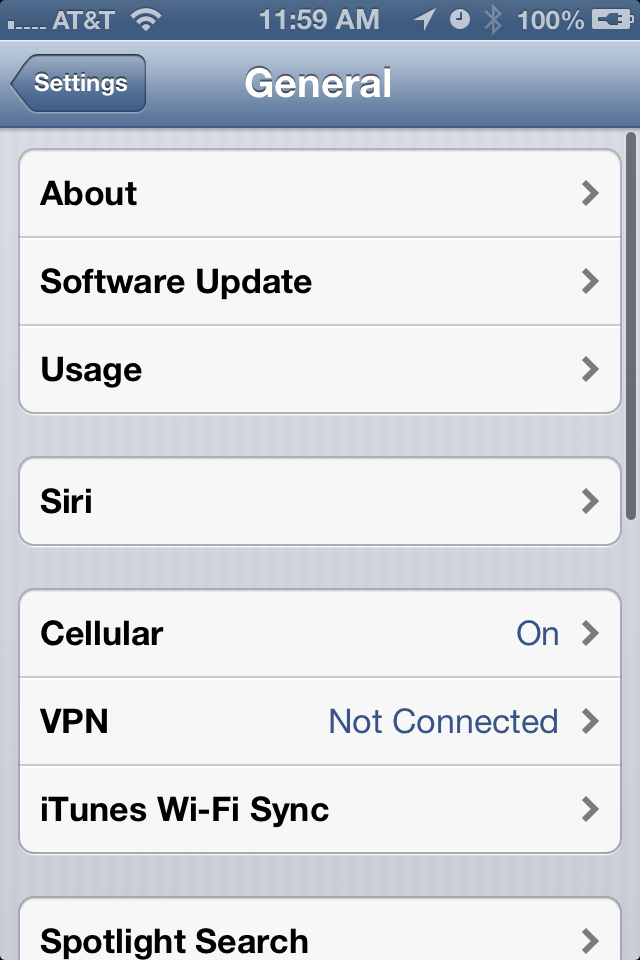
- Go to General:
- Scroll Down to Reset:
- Select Reset Network Settings (DO NOT SELECT ERASE ALL CONTENT AND SETTINGS)
- If you have a password enter the phone password:
- Select Reset Network Settings:
Phone will turn off and turn back on.
Monday, April 22, 2013
Great Article!- 7 Useful things with Siri
Siri is surprisingly useful, and though the voice assistant can do a ton of stuff, it’s really best used when it’s either faster than manually tapping around a screen, or when you’re unable to because your hands are busy from driving or something else. Now that Siri can be enabled on more iOS devices than ever before, you should really start using it, and here are some genuinely useful things you can do with Siri to get started:
1: Check Email, Send Replies, and Compose New Mail
On the go or just feeling lazy on your couch? Just saying “Check Email” will check for new messages and give you a list all of your recent emails. If you feel like responding to one, say “Reply to (Name)”, then provide a response to Siri for the message. You can also compose new emails by just saying “Send email to (name) saying (message)”.
2: Get Sports Info, Find Game Times, and Check Scores
Wondering when kickoff is? Maybe you’re on the road and want to know the score of a game? Siri knows, just ask. For the best results with sports, you’ll want to be fairly specific with team names, since there is some crossover between different sports. It’s best to ask something like “When are the San Francisco Giants playing” rather than “When are the Giants playing”, since you could end up getting results for New Yorks football team rather than the baseball info you actually want. Either way, Siri works great for this.
3: Send Text Messages
Siri will type out text messages for you, which is wonderful if you either don’t like typing on touch screens or you’re driving and can’t send texts anyway. Just say “Send text to (name) saying (message content)” and it will be done, it’s really that easy.
4: Make Phone Calls
Just like it’s often easier to talk out a text message or email while you’re driving or your hands are busy, so is making a phone call. A quick “Call Mom” is all it takes, and you’re on your way. You can also identify relationships to Siri by assigning contacts to relationships, like wife, girlfriend, dad, mom, brother, cousin, etc.
5: Get Local Weather, or Check Weather Anywhere
Whether you want to know the local weather or the weather at a destination, Siri can do it. Asking “What’s the weather” will give you the current locations weather and temperature, and specifying a location will tell you what the forecast is for elsewhere. Much faster than tapping around to launch a weather app!
6: Set Alarms or Take a Nap
Want to take a two hour nap? No problem, just tell Siri to wake you up in two hours, and an alarm will be set for you. Of course, you can set normal alarms through Siri by saying “set an alarm for this time”, but the nap approach is very useful.
7: Get Movie Times
Wondering when a movie is playing nearby? Siri uses your location to find out. Just ask “When are showtimes for (movie name)” and you’ll get a list of all times for that movie playing at all nearby theaters. This is much quicker than launching an app and searching around.
Do you use Siri for anything in particular? Let us know in the comments.
Source: http://osxdaily.com/2012/10/04/7-good-uses-of-siri/
Words of Wisdom 4/22/13-4/28/13
Monday 4/22/13
Tuesday 4/23/13
If you never rest & take care of yourself, you will have absolutely nothing left over to give to anyone else. #TheSW- @thesinglewoman
Wednesday 4/24/13
Make choices & stand behind them. Don't waver every time someone disagrees with you.
Thursday 4/25/13
"Patience is the companion of wisdom." Saint Augustine
Friday 4/26/13
"The best and most beautiful things in the world cannot be seen or even touched. They must be felt with the heart." Helen Keller
Saturday 4/27/13
"You must be the change you wish to see in the world." Mahatma Gandhi
Sunday 4/28/13
"Life's Tragedy is that we get old to soon and wise too late." Benjamin Franklin
Monday, April 15, 2013
AppleId under the Wrong Country? Need to Change your Country/Region?
Tunes --> "To change countries, scroll to the end of the iTunes Store home page and click the flag indicating the current country. To choose a different country, click the appropriate flag."
iOS: Changing the signed-in iTunes Store account - http://support.apple.com/kb/HT1311 - Change your iTunes Store country: "Sign in to the account for the iTunes Store region you'd like to use. Tap Settings > iTunes & App Stores > Apple ID: > View Apple ID > Country/Region."
Source: https://discussions.apple.com/thread/4514753?start=0&tstart=0
ScreenShots to Come!
Sunday, April 14, 2013
Saturday, April 13, 2013
Corrupt Music on your iPhone and it won't go away?
Every once in a while you sync your iPhone to your computer and something goes wrong. Lets take music for example. If your music library is larger than the space on your iphone sometimes it causes it to skip songs and when you unchecked music or try to change the music settings in iTunes but the music is staying on the phone. You have tried everything but a master reset and the music just won't go away.
Here's how to fix that:
- Go to Settings
- Go to General
- Go to Usage
- Once the screen updates select Music
- Select Edit
- Select Delete
And your music will be off the phone. You can sync again.
Subscribe to:
Posts (Atom)