Tuesday, May 7, 2013

Calendar


Do you have multiple email accounts all with calendars? Are you finding that on your iPhone some move to icloud but not all? Or maybe they are not going to icloud at all?

There are several ways this is happening. The end all reason is that the appointment/event isn't on the calendar you are looking at. It could be that the appointment was saved/created to the default calendar or you could have added it to the wrong calendar.

To see/Change the Default Calendar:

Go to Settings:

Go to Mail, Contacts, Calendar:

Scroll down to Calendar:

Look at Default:

This is the where the events (whether you accepted an invite or you created a new one is saved)
Tap on Default and you will see a list of your calendars you can select which calendar you want all your appointments to default to:


To save a invite (emailed to you) to a specific calendar:
             

Tap on the attachment:
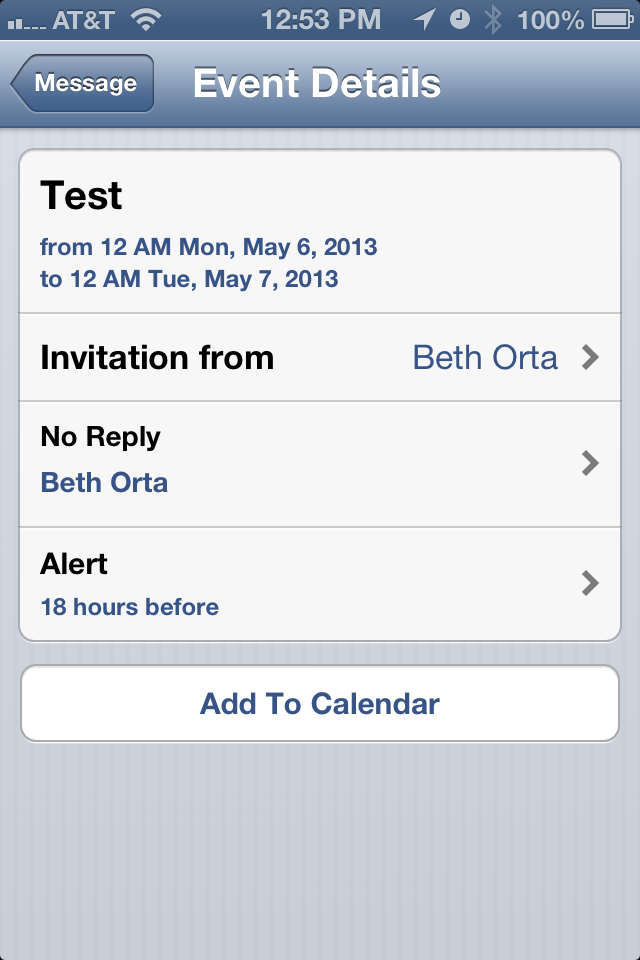
Tap on Add to Calendar:

Select Calendar you want and select Save.

To Change which calendars you see in your Calendar App:

Go to Calendar

Tap Calendars in the top left hand corner:

You can select each calendar you want to view or not view. If there is a check it is visible, if it is not checked then it is not visible:
 

Monday, May 6, 2013

iTunes Match on the iPhone


This is a great way to stream your music from your Cloud. If you are like me and have more music than you do space this is a great space saver. You will be able to play any song that is on the cloud AND you will be able to download to the phone if you need to without going to the computer and syncing.

To Turn iTunes Match on: 


  • Go to Settings


  • Go to Music (you can also go to Itunes and Store) 


  • Turn on iTunes Match 


KEEP IN MIND THIS IS A PAID FOR SERVICE. IT CHARGES $24.99 a YEAR AND IT will override any existing music on your phone so if you have songs that are not in your iCloud you may want to wait and update this after you have gone to the computer and gone to Store-Update Itunes Match


  • Once you have turned on iTunes match if you go into your music library you will see a cloud with a line filling up. This means it is downloading your music from the cloud. 


  • Next to each song that was not on your phone you will see a box with a cloud and a downward arrow. Click that to download the song. 


  • Slide your finger across the song to delete the song. 


  • Tap the song to play the song. 


PLEASE BE AWARE THAT THIS WILL STREAM MUSIC IF YOU DO NOT HAVE UNLIMITED DATA YOU MAY WANT TO DO THIS ON WIFI! 


Sunday, May 5, 2013

iOS 6.1.4

This is an iPhone 5 update only. It is to fix an issue with audio specifically associated with speakerphone.

Saturday, May 4, 2013

Words of Wisdom 05/06/13-05/12/13


Monday 05/06/13

Be grown up enough to not give a damn about people backstabbing you. Especially if they have not the balls to do it to your face. BE BIGger!- @DonnieWahlberg


Tuesday 05/07/13

We're not here by mistake! We're here for a purpose. Find yours and serve it! Use it to help others so that they may find their purpose too.-@Donniewahlberg

Wednesday 05/08/13

Fear told me I couldn't.  Hope told me I could.  Desire made me try it.  Hard work made it come true.  There's nothing in life you can't do!-@Donniewahlberg

Thursday 05/09/13

Those who always have a sense of appreciation and gratitude never reach an impasse in life.- Daisaku Ikeda


Friday 05/10/13

People whose hearts are full of gratitude and appreciation are truly beautiful. A humble heart is the wellspring of great growth and development.- Daisaku Ikeda

Saturday 5/11/13

Gratitude makes a person modest. A sense of gratitude expands the heart.Daisaku Ikeda

Sunday 05/12/13

There is no one as strong as a person whose heart is always filled with gratitude.- Daisaku Ikeda

Friday, May 3, 2013

MCBackup Contacts App

In case you don't have iCloud or maybe you have forgotten your iCloud password, maybe you just want the contacts from your phone to be saved someplace else so that you can have them in case of emergency there is an app that will allow you to backup all your contacts. The app is called MCBackup (I am sure there is more but this is the one I played with).

  • Download app from the App store. 
  • Open App
  • Click the backup button

  • The app will start backing up: 

  • Once the backup is complete it will tell you complete and email: 
  • Tap the email button and fill in your email address and click send: 
  • Your contacts are now in your email in a file format that you can export to any location. 

Here are the screenshots of the Settings: 

Thursday, May 2, 2013

Ringtone Maker Apps

The ringtone maker apps are becoming more and more popular. The down side to these apps are in order to get the song as your ringtone you have to connect your iPhone to the computer to get it to transfer from the app to the iPhone. Here are the steps to not just creating the ringtone but also to syncing it over:


  • Open App:


  •  Select Song: 


  •  Edit to the part you want the song: 


  •  Keep in mind the free versions can only do so much you will have to purchase the full version for more features: 


  •  When you hit the save button it will create your ringtone: 


  • Your ringtone is created when you see this page: 


  •  The Help screen so you can see how to transfer: (Its a YouTube Video): 


  •  You can email it to yourself BUT you will not be able to transfer it to the sounds!: 


  • On your computer, open iTunes and connect your iPhone: 


  • Go to the Apps tab:


  • Scroll down to the File Sharing section until you see the app you are using: 


  • When you highlight your app it will populate the ringtones you created on the right hand side, select the ringtones and select Save To (Add transfers from the computer to your app): 

  • Save file to a location you can find it: 

  • Once you have the file on your desktop you can do one of two things: 

    1. Click Done in the top right hand corner; Click File, Click Add to Library then select the file you saved to the desktop. 
    2. Click Done in the top right hand corner; select the file in your computer and drag and drop to the library. 


Wednesday, May 1, 2013

Shortcut Keys to Do screenshots on a Mac


Command-Shift-3: Take a screenshot of the screen, and save it as a file on the desktop
Command-Shift-4, then select an area: Take a screenshot of an area and save it as a file on the desktop
Command-Shift-4, then space, then click a window: Take a screenshot of a window and save it as a file on the desktop
Command-Control-Shift-3: Take a screenshot of the screen, and save it to the clipboard
Command-Control-Shift-4, then select an area: Take a screenshot of an area and save it to the clipboard
Command-Control-Shift-4, then space, then click a window: Take a screenshot of a window and save it to the clipboard