Showing posts with label iphone. Show all posts

Thursday, May 16, 2013

Trying to Call and getting an Email?

Are you trying to make a phone call and when you tap on the contact an email comes up?


This is a very simple solution, your contact is incorrect. What is happening is that for some reason the phone number is in the email field vs the phone field. This causes it to bring up an email when you tap on the number.

 Here is a tip: When entering a contact's phone number if the screen looks like below then you are entering it in the right field: 

If you get the screen below then you entered in the wrong field: 
To Fix the issue:

Go to Contacts

Select Contact:

Tap Edit:

Select the number:

Select Copy/Cut:

Tap the Phone field and Paste the number in the field:

Click save :
Try taping the contact/number now you should see this:

Thursday, May 9, 2013

iPad vs. iPhone Apps

If you are trying to have the same apps on the iPhone and the iPad please be mindful of something. Most apps will transfer between the two devices IF it has a plus symbol next to the price OR in the Description field it says Requires:

For the app to transfer to the iPad and the iPhone it does have to say in the required field that it is compatible with both.

In general you can tell because the App Store breaks it down by iPhone Apps and iPad apps:


A rule of thumb is if you don't see it in your Purchases then the app is not compatible with the device you are trying to download it to.

Tuesday, May 7, 2013

Calendar


Do you have multiple email accounts all with calendars? Are you finding that on your iPhone some move to icloud but not all? Or maybe they are not going to icloud at all?

There are several ways this is happening. The end all reason is that the appointment/event isn't on the calendar you are looking at. It could be that the appointment was saved/created to the default calendar or you could have added it to the wrong calendar.

To see/Change the Default Calendar:

Go to Settings:

Go to Mail, Contacts, Calendar:

Scroll down to Calendar:

Look at Default:

This is the where the events (whether you accepted an invite or you created a new one is saved)
Tap on Default and you will see a list of your calendars you can select which calendar you want all your appointments to default to:


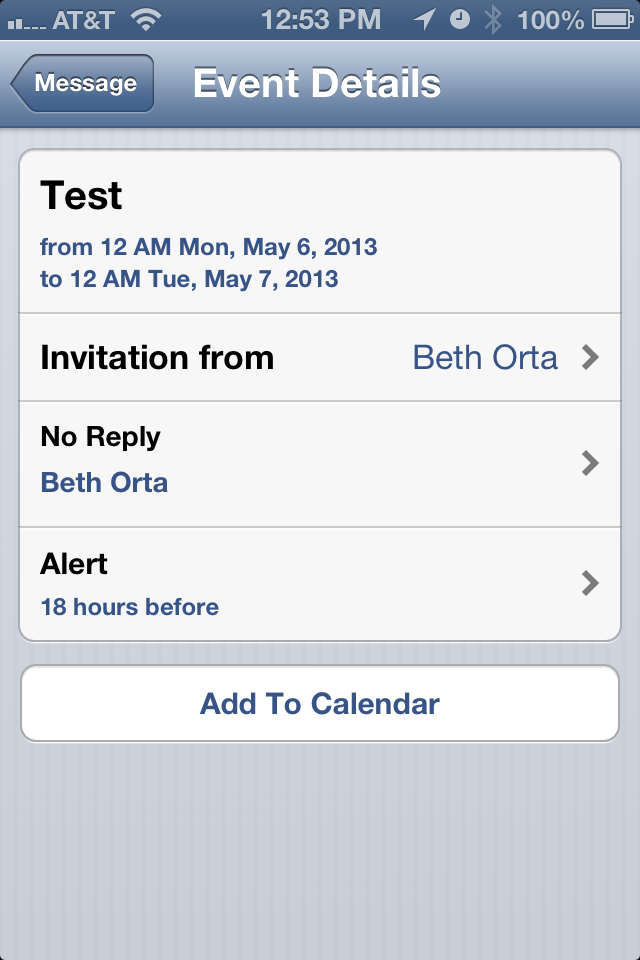
To save a invite (emailed to you) to a specific calendar:
             

Tap on the attachment:

Tap on Add to Calendar:

Select Calendar you want and select Save.

To Change which calendars you see in your Calendar App:

Go to Calendar

Tap Calendars in the top left hand corner:

You can select each calendar you want to view or not view. If there is a check it is visible, if it is not checked then it is not visible:
 

Friday, March 22, 2013

iPhone Cleaning on Apps?

This was a recently post but one of the people I follow on twitter:

Jennifer Wahlberg (@CocoaColaJenn)
Have you ever seen this on your iPhone? I won't let me in Facebook and it says "cleaning"pic.twitter.com/qDH3i64cnL

This was interesting to me because I had never seen it. After researching this is what I have found:


  • This started in iOS 5
  • This is nothing bad it just means that the iPhone is cleaning out the data/cache files stored on the phone are being emptied. Apple is being more strict on the amount of data that apps store so in an attempt to keep the storage amount down it clears the data every once in a while. 
Two good sources: 

Tuesday, March 12, 2013

To Add People to VIP list


  • Go to Mail


  • Open your email message


  • Select the email address 


  • Select Add to VIP


Tuesday, February 26, 2013

AT&T Locker App

Want to have something other than Photostream back up your photos?
If you are an AT&T Customer you can use AT&T Photo Locker.

It will store up to 5gb of photos onto their server for free. It will also automatically upload photos when you open the app.

Go to the app store

Search for AT&T locker then download and install the locker

Open the locker and sign in (this is the same information that you use to log into your myatt account)

You can upload from here, view from here, delete, and download. You can also share.


  You can also go to the att website and see your photos and download there. To do that go to https://locker.att.net/app/
Sign in and you will be able to see all your photos, videos and docs.